 URDF Studio
#Pose the robot
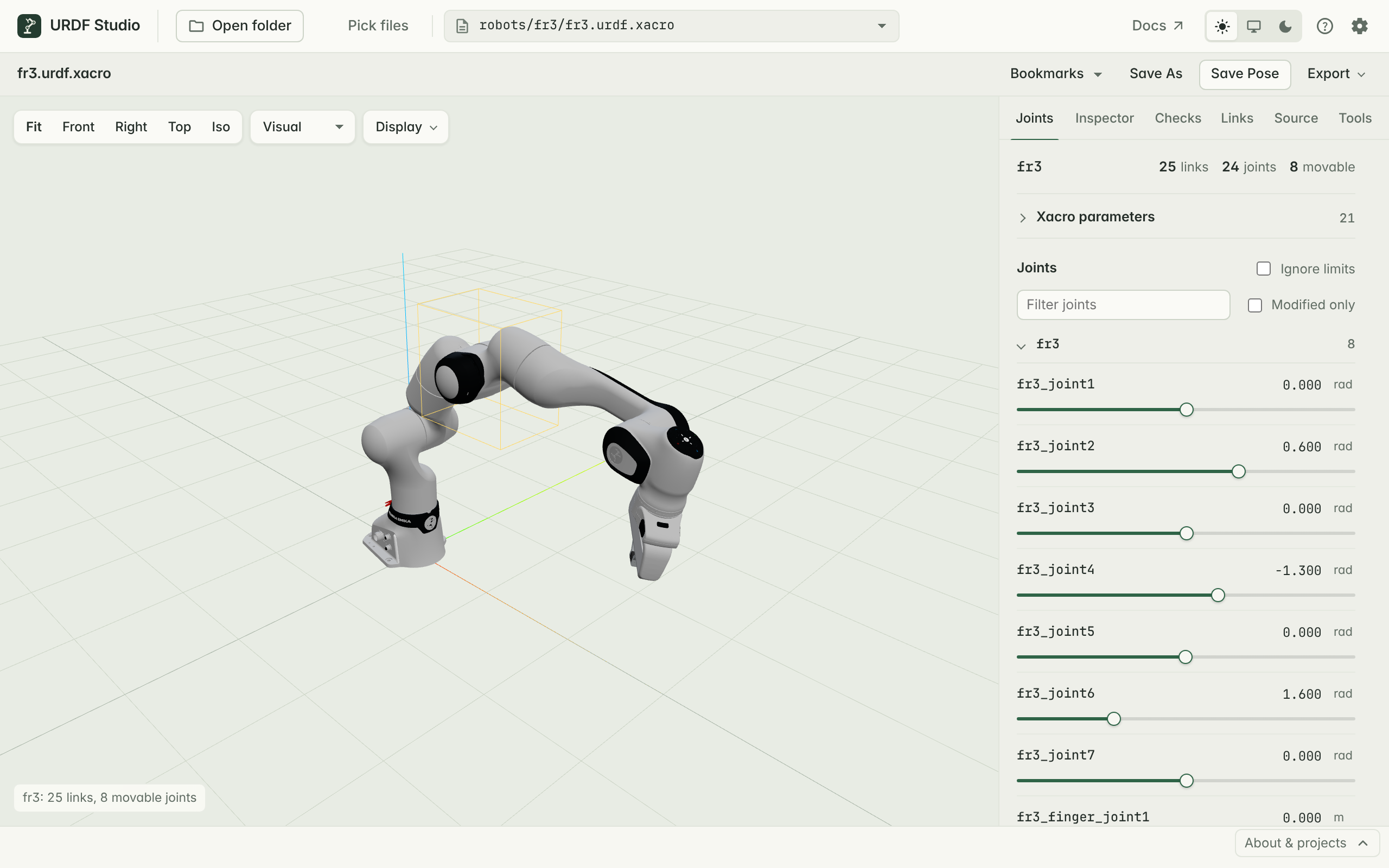
The Joints tab lists every joint that can move. When an SRDF is loaded, joints are grouped by its planning groups.
#Move a joint
- Drag the slider to move the joint and watch the robot follow.
- Type a value in the number field for an exact position. Revolute and
continuous joints are in radians (
rad), prismatic joints in metres (m).
The slider covers the range in the joint's <limit>. Continuous joints go
from −π to π.
Fixed joints are not listed because they can't move.
#Reset
- Reset next to Joints moves every joint back to zero. Mimic joints follow.
- A joint you have moved shows a reset button beside its value; click it to reset just that joint. Double-clicking the slider does the same.
When zero is outside a joint's limits — the Franka FR3's fourth joint, for example, only bends between −3.08 and −0.12 rad — reset moves it to the nearest limit instead. Such a joint shows as moved when a robot first opens, because it starts at an invalid 0.
#Find a joint
On robots with many joints:
- Type in Filter joints to show only joints whose name contains that text.
- Tick Modified only to show only joints you have moved away from zero (or from the nearest limit, see Reset).
#Go past the limits
Tick Ignore limits to move joints outside their <limit> range. It's
useful to see what the hardware could physically do, or to check whether a
limit is set wrongly. It turns off again when you open another robot.
#Mimic joints
A joint with <mimic joint="…" multiplier="…" offset="…"/> follows another
joint, as grippers often do. It has no slider of its own: move the joint
it follows, and it moves too, by multiplier × value + offset.
If a mimic points at a joint that doesn't exist, it shows up in
Checks as R-005.
#Named states from SRDF
If the package has an SRDF with <group_state> entries — ready, home,
transport and so on — each group shows them as buttons above its joints.
Click one to apply that pose.
URDF Studio looks for .srdf files and initial_positions.yaml in each
package's config/ folder. To use other files, add them under
Semantic files in settings.
#Change xacro parameters
For a .xacro file, Xacro parameters at the top of the Joints tab
lists the file's xacro:arg values — for example which hand is attached,
or the robot's name prefix. Change values and click Reload xacro.
To use the same values every time, set Default xacro args in settings.
#Keep a pose
Click Save Pose in the toolbar to keep the current pose, or add it to Bookmarks under a name. See Save poses and export.