 URDF Studio
#Find and fix problems
Every time a robot loads, URDF Studio checks it for problems that break loading, confuse simulators, or are likely mistakes. Results are in the Checks tab and, in VS Code, the Problems panel.
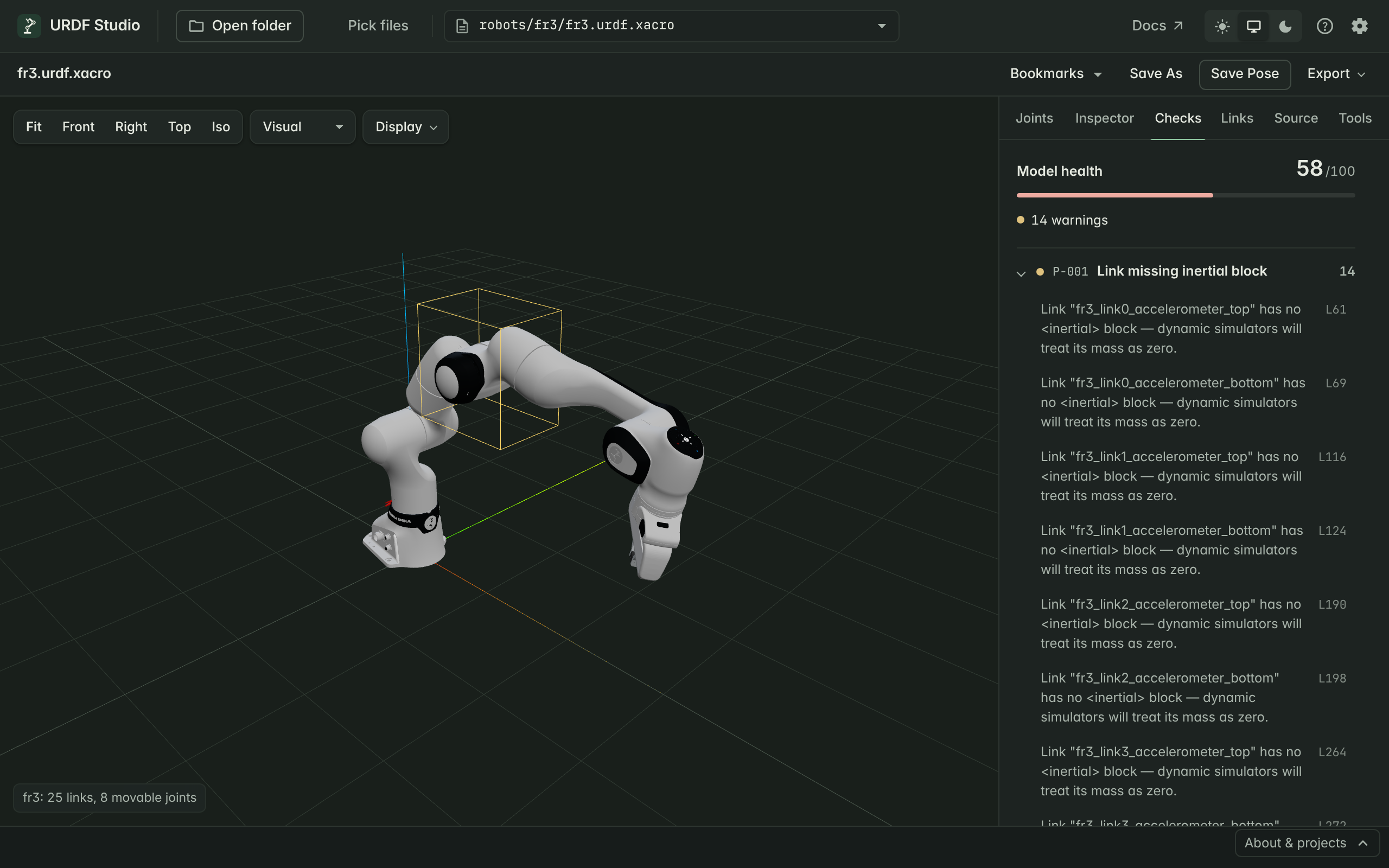
#Reading the Checks tab
At the top:
- Model health — a score out of 100. It starts at 100 and drops by 10 for each error, 3 for each warning and 0.5 for each info. Treat it as a rough progress meter while you clean up a model, not as a grade.
- Counts of errors, warnings and info items.
Below, problems are grouped by check. Each group shows a code such as
P-001, a short name and how many times it was found. Click any problem to
open the Source tab at that line.
Problems that stop the model from loading — the file isn't valid XML, or xacro can't be expanded — are grouped under Loading problems and also pop up in the corner. Errors stay until you close them; warnings fade.
If the robot has structural errors (a joint pointing at a missing link, a loop, a link with two parents), URDF Studio still draws the rest of it and leaves out only the broken parts. The caption in the corner of the 3D view says how many elements were left out.
#What the severities mean
| Severity | Meaning | What to do |
|---|---|---|
| Error | Something is broken: the robot may not load, or loads wrong | Fix before using the model |
| Warning | Likely a mistake, or something a simulator or planner will trip on | Look at each one; most are worth fixing |
| Info | Tidiness and suggestions | Fix when convenient |
#Common problems and fixes
A link has no <inertial> block (P-001). Simulators treat it as
massless, and Gazebo may ignore it entirely. Fine for pure frames such as
tool0 or sensor mounts; for real parts, add mass and inertia.
A joint has no limits (P-004). Revolute and prismatic joints need
<limit lower upper effort velocity>. Without one, many tools refuse the
model or treat the joint as frozen.
A mesh can't be found (A-001). Usually the folder you opened doesn't
contain the package the path points to. See
Troubleshooting.
A joint names a link that doesn't exist (R-003). Often a typo, or a
xacro prefix applied in one place but not the other.
The full list, with what triggers each check, is in the Checks reference.
#Quick fixes
Some problems can be fixed with one click. They insert a reasonable placeholder that you should then adjust:
- Missing
<limit>→ inserts a default limit. - Missing
<inertial>→ inserts a small default inertial. - Invalid mass → sets mass to 1.0.
- Zero effort or velocity → sets effort 100 and velocity 1.0.
<limit>on a continuous joint → removes the angular limits.
In the Source tab, turn on Edit, then use the fix offered on the underlined line. In VS Code, use the light bulb in the text editor.
#Xacro files
For a .xacro file, checks run on the expanded result, so line numbers
refer to the expanded URDF shown in the Source tab — not to your xacro
source. Search your xacro for the link or joint name to find the place to
change.
If an expression in your xacro can't be evaluated, URDF Studio skips it and expands the rest so you still get a robot to look at. A warning tells you which expression was skipped.